Turn Your Prompts Into Tools with Skills in Chrome
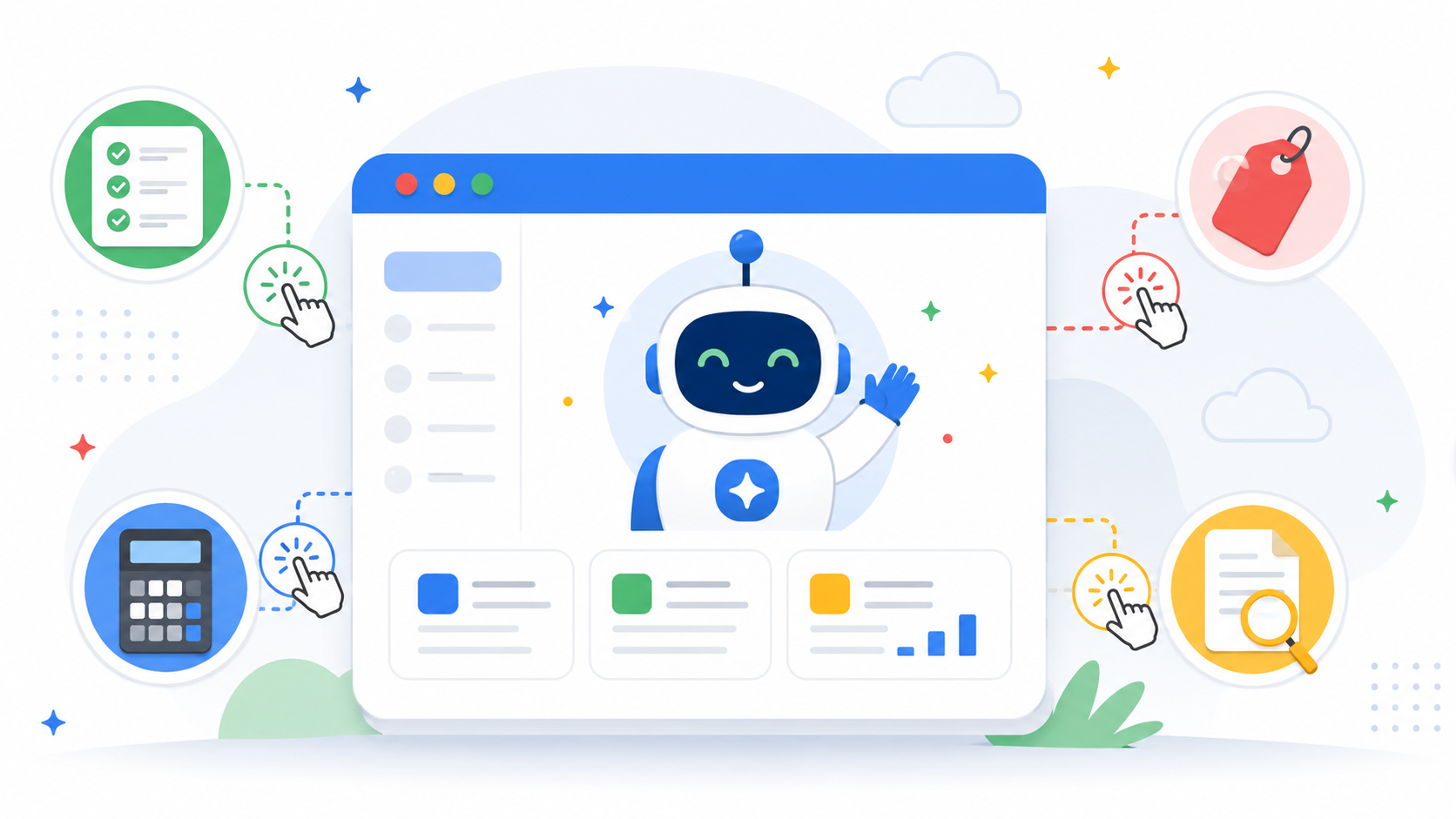
Chrome Skills: Turn Repeating AI Prompts Into Reusable Tools
If you've spent any time using AI directly in your browser, you've probably run into the same annoyance: you craft the perfect prompt once, get a great result, and then have to retype the whole thing from scratch the next time you need it — on a different page, a different day, or a different tab full of product listings or spreadsheets.
Google just fixed that.
Chrome is rolling out a new feature called Skills, and it's designed to turn your favorite recurring AI prompts into reusable, one-click tools that work wherever you're browsing.
The Problem: Great Prompts Shouldn't Be One-Time Use
Think about the last time you asked Gemini in Chrome to do something useful — maybe:
- Substitute ingredients to make a recipe vegan
- Summarize a long PDF
- Compare specifications across a few open tabs
The prompt worked well, but the moment you needed that same kind of help again, you were back to typing it out from memory.
Multiply that across dozens of small, repeatable tasks and it adds up to a lot of wasted effort.
Skills in Chrome addresses this directly by letting you save a prompt once and reuse it without retyping it.
How Skills Work
The workflow is straightforward:
- Write a prompt in Gemini in Chrome that you know you'll want to use again.
- Save it as a Skill directly from your chat history.
- Reuse it anytime by typing a forward slash (
/) or tapping the plus (+) button in Gemini in Chrome, then selecting your saved Skill. - Run it instantly on whatever page you're currently viewing — or across multiple selected tabs at once.
You're not locked into your original wording, either.
Saved Skills can be edited at any time, so a workflow you built weeks ago can evolve as your needs change.
What People Are Already Building
Google says early testers have already turned Skills into useful personal tools, including:
- Health & Wellness — Instantly calculating protein macros for any recipe
- Shopping — Generating side-by-side specification comparisons across multiple open tabs
- Productivity — Scanning long documents and pulling out the most important information
These aren't flashy AI demos.
They're the kinds of small, repetitive tasks that quietly consume time throughout the day — which is exactly where a one-click Skill can become useful.
Don't Want to Build Your Own? There's a Library for That
Along with the ability to create custom Skills, Chrome is also launching a built-in Skills library with ready-made Skills for common tasks.
For example, you might use a pre-built Skill to:
- Break down the ingredients of a product before buying it
- Compare products across multiple tabs
- Cross-reference your budget with a recipient's interests to find a gift
- Analyze information on the page you're currently viewing
You can add any library Skill directly to your saved list.
If a Skill is close to what you need but isn't quite right, you can open it and modify the underlying prompt to fit your workflow.
Built on Chrome's Existing Safeguards
Skills don't operate with less oversight than a regular AI prompt in Chrome.
They're built on the same security and privacy foundation as the rest of Gemini in Chrome.
That means a Skill will still ask for your confirmation before taking certain sensitive actions, such as:
- Adding something to your calendar
- Sending an email on your behalf
- Performing other actions that require explicit approval
Skills also benefit from Chrome's broader security protections, including automated red-teaming and automatic updates.
Availability
Skills are rolling out to Gemini in Chrome on desktop, including:
- Mac
- Windows
- ChromeOS
The initial rollout is available for users who have Chrome set to English (US).
Once a Skill is saved, it can sync across your signed-in Chrome desktop devices.
To manage your saved Skills:
- Open Gemini in Chrome.
- Type
/. - Select the compass icon.
- View, edit, or manage your saved Skills.
The Bigger Idea
Repeating the same AI prompt over and over was never a particularly efficient use of anyone's time.
With Skills, Chrome is moving AI beyond one-off conversations and toward something more useful: repeatable workflows.
Instead of simply asking AI the same question every time, you can turn a well-designed prompt into a reusable tool.
And that's potentially a much bigger shift.
The best AI experience may not be about getting a great answer once.
It may be about turning your best prompts into tools you can use again and again.